
Tips for Taking Photos of Your Fibre Artwork
This is a guest post by Dani D. Thanks Dani for your photography expertise!
Part 1 of 3: Telling the story
Hi! I’m Dani and this is my first post here, though 2024 marks my 20th (!!) year of blogging. I started blogging about raising my family, and then about photography. Now that my kids have grown up, I’ve moved my bloggy thoughts to a new home at Curious Crone, so feel free to come visit me there some time.
Ruth generously invited me to share a few tips about digital photography and I had so many thoughts it turned into a trilogy. Today, we’ll talk about telling the story and basic tips on using your smartphone to take better photos of your fibre projects. In later posts, we’ll talk about the two most important factors that will affect your photos: light and colour.
In many ways, taking photos of your fibre arts projects is easier than photographing humans. The fibre art doesn’t stick out their tongue when mom is not looking (this happens rather a lot in my family photography business) nor do they give that tight-lipped fake smile while stage-whispering out of the corner of their mouth to the other subjects in the photo “if you don’t behave for this photos I will take away your devices for a year!”
First, a few words about smartphones and apps. For this post, I’m thinking mostly in terms of taking pictures with your phone. There are two terrific free apps for editing photos: Google’s Snapseed and Adobe’s Lightroom. (And yes, you really should edit your images to polish them – it can make all the difference in the world.) I use Snapseed on my iPhone and Lightroom for editing dSLR images on my Mac, but there’s a great version of Lightroom as a mobile app and as an online editor. Both Snapseed and Lightroom mobile apps are available for iOS and Android. Did I mention free?
As every photography teacher will tell you, getting the image as right as possible before you press the shutter saves you time and effort at the editing stage. So whether you’re taking photos of a wet-felted vessel or your adorable two-year-old nephew, take a second before you click the shutter and think about the following things:
- Is the background clear of clutter?
- Do other elements in the frame complement or compete with the subject?
- What story am I trying to convey?
- Would a different perspective tell a different story? (Try shooting looking up at the subject, looking down at the subject, zoomed in to fill the frame, zoomed out to show something as small in a large background, shoot down from overhead, shoot at eye level, shoot super close to illustrate a fine point of detail.)
If you start thinking in terms of the story you are telling, your photography will improve immensely. In fact, as a successful licenser of stock photos to Getty Images, I’d argue the story is more important than the technical criteria of the photo. Every successful image should tell a story, whether it’s about the texture of the piece or the shape, the colours or the light. The photo is not just a static thing, it’s an invitation to interact with your creation or your creative process.

How do you begin to tell that story? Don’t just snap the photo as soon as you have your subject trapped in the viewfinder – compose your image deliberately and thoughtfully. For more tips and ideas around how to compose your image, search up ‘rules of composition’ for ideas like leading lines, rule of thirds, etc.
Here’s an example of me finding the story I wanted to tell. First photo, basic spindle and wool. Not very interesting.
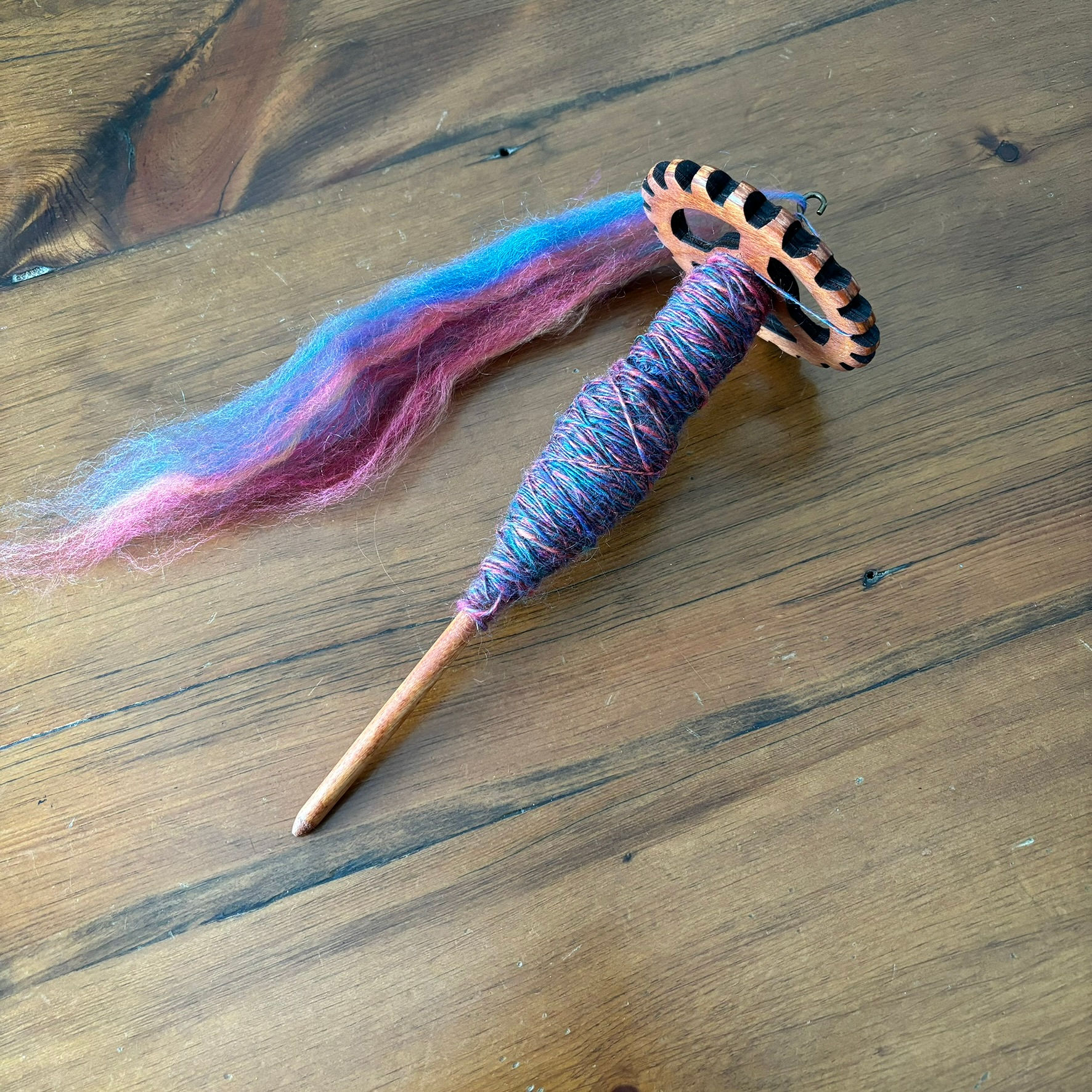
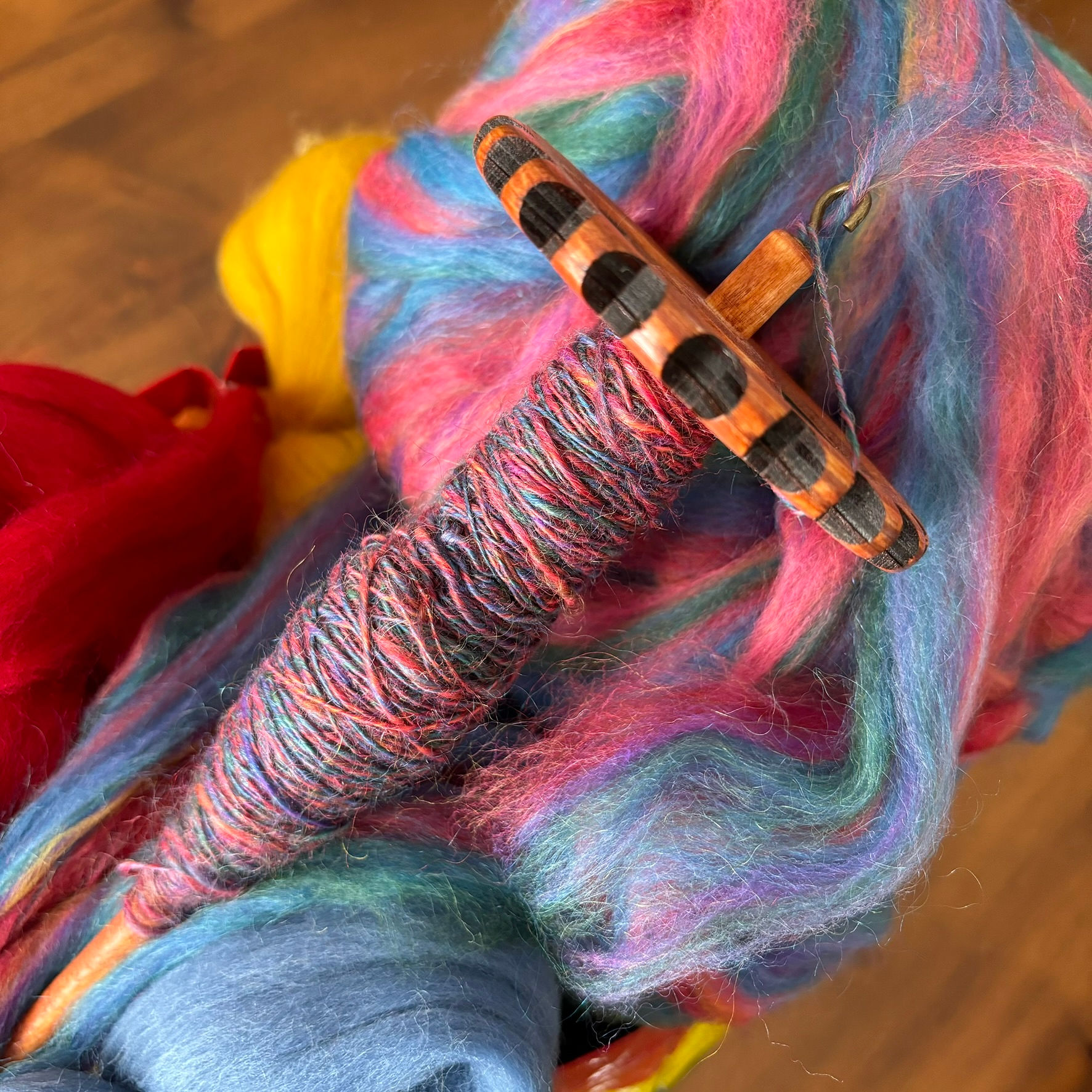
What if I added some fibre to flesh out the photo? Nope, too busy. Background is distracting focus from the subject.
I love this blue mason jar. I could use it to stand the spindle up for a better angle. Except the background is too cluttered.
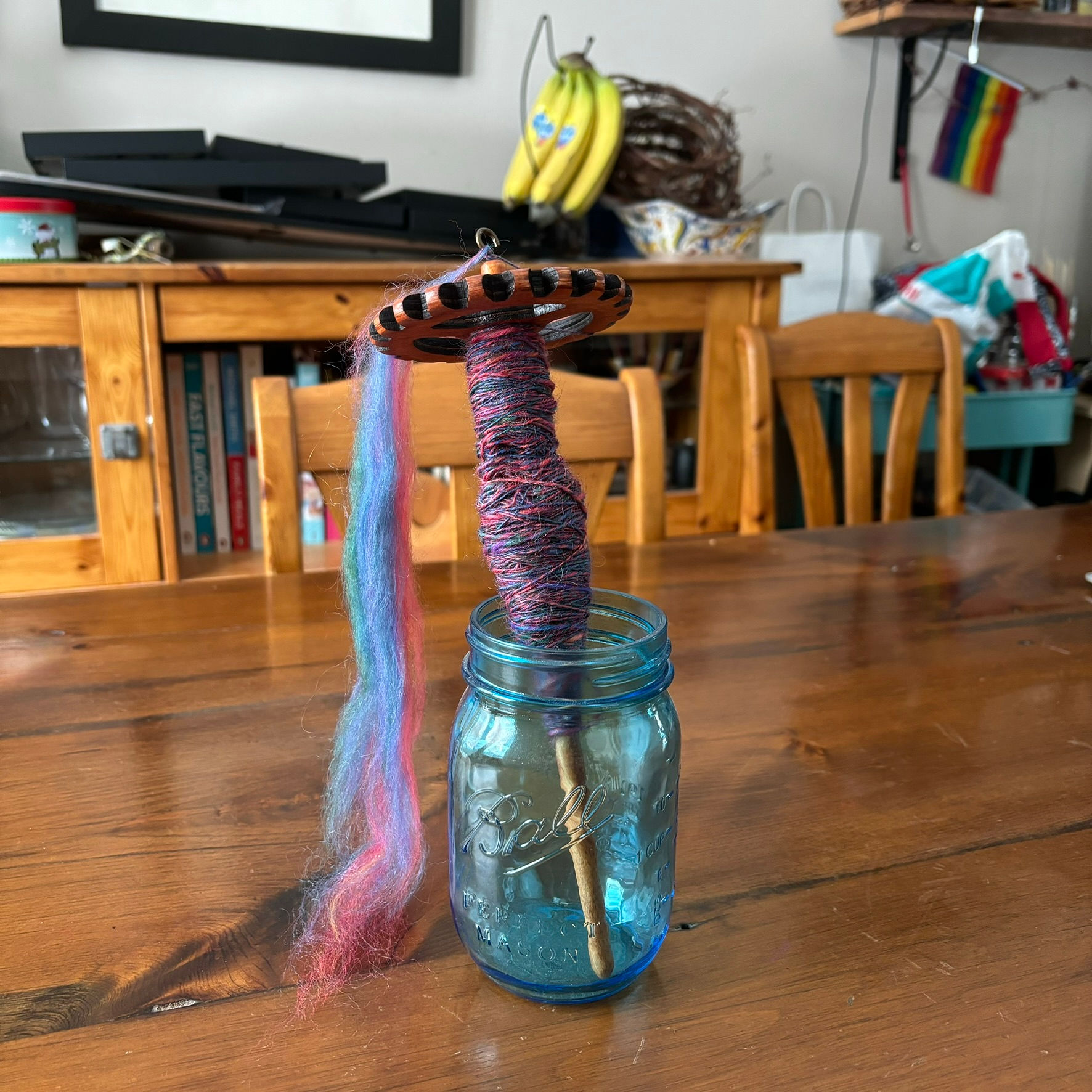
I’ve zoomed in and am playing around with the perspective.


If you’re making photos for an Etsy or other online shop, think about setting a mood with props and building a little tableau. An old piece of barn board and some cream linen evokes a sort of farmhouse chic mood, where a cup of coffee and an aloe plant set more of a lifestyle vibe. Just keep in mind that you want accessories to compliment your subject and not compete with it.
This is my kitchen floor, after a quick swipe to remove crumbs and pet hair. The first thing I noticed in the first photo was the seam down the middle of the wreath, which is a distraction. I played with the angles a bit but didn’t love any of these.
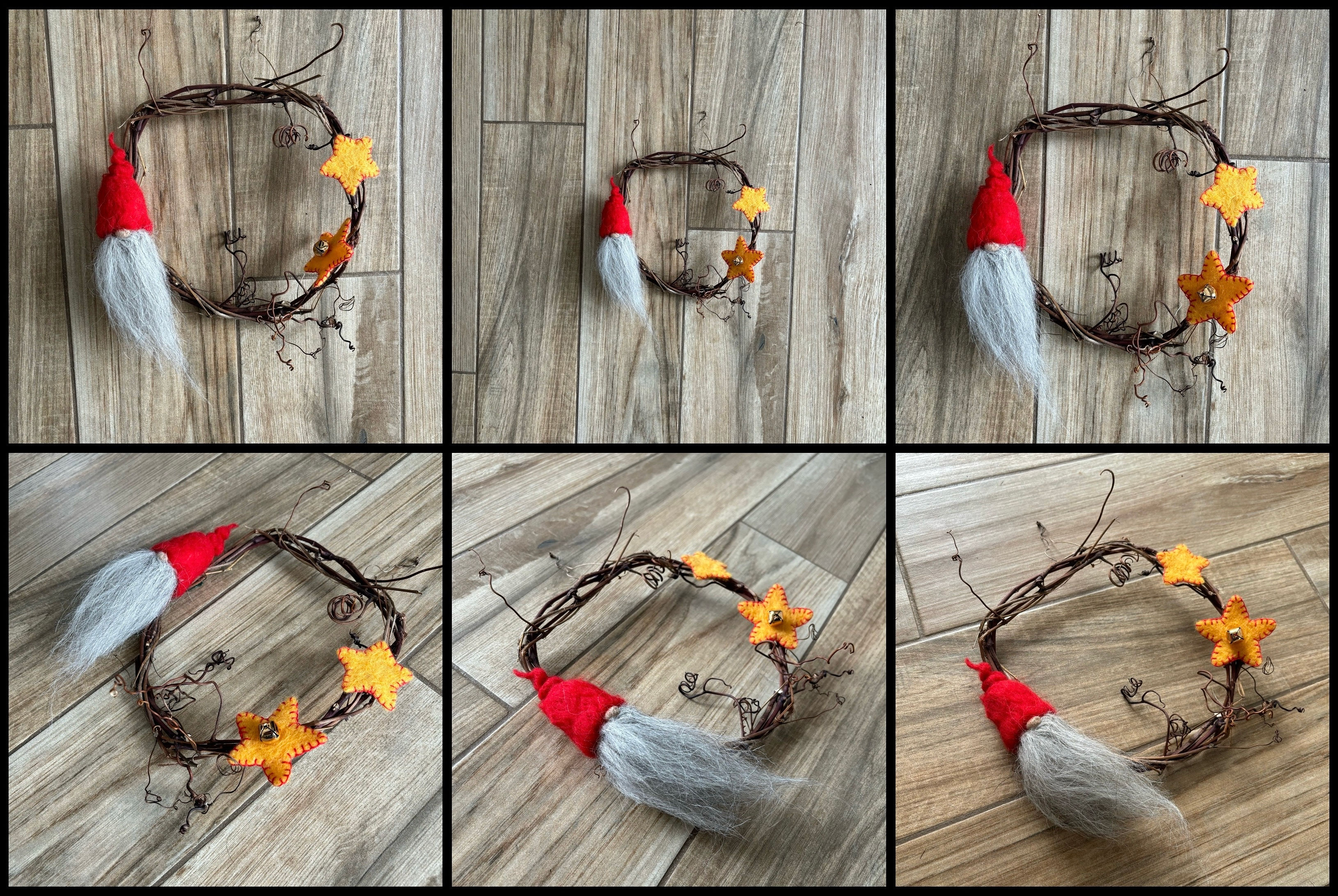
I pulled some loose wool and tools in to tell a bit of a how-to story. I liked that much more.

These last two photos show the difference editing can make. The first is straight out of the camera.
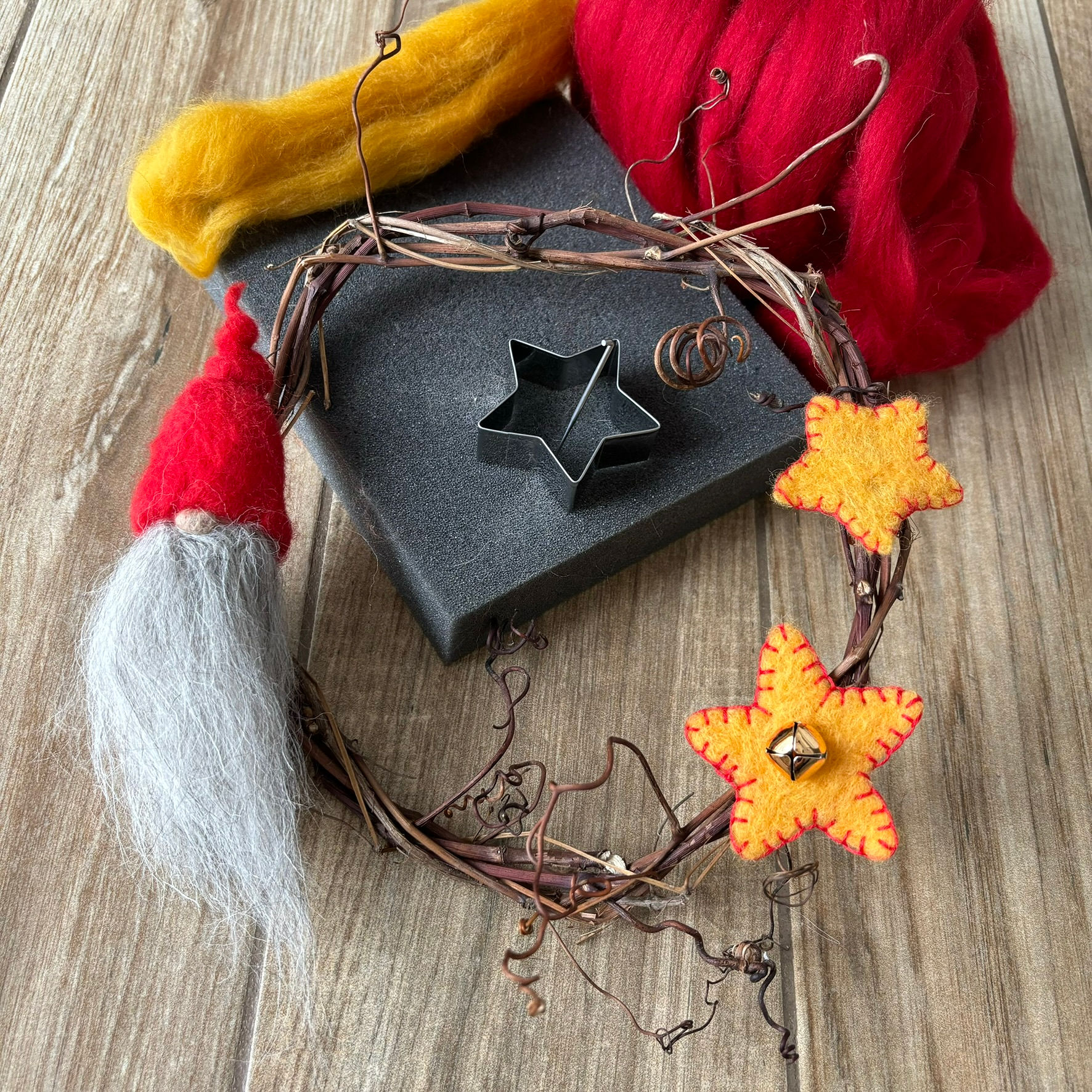
The one below has been edited for brightness (more), ambiance (more) and a slight rotation and crop to cut out the bit of gap at the top right to keep the viewer’s eye in the frame. Bright spots and colour will draw viewers’ attention, so use them deliberately.
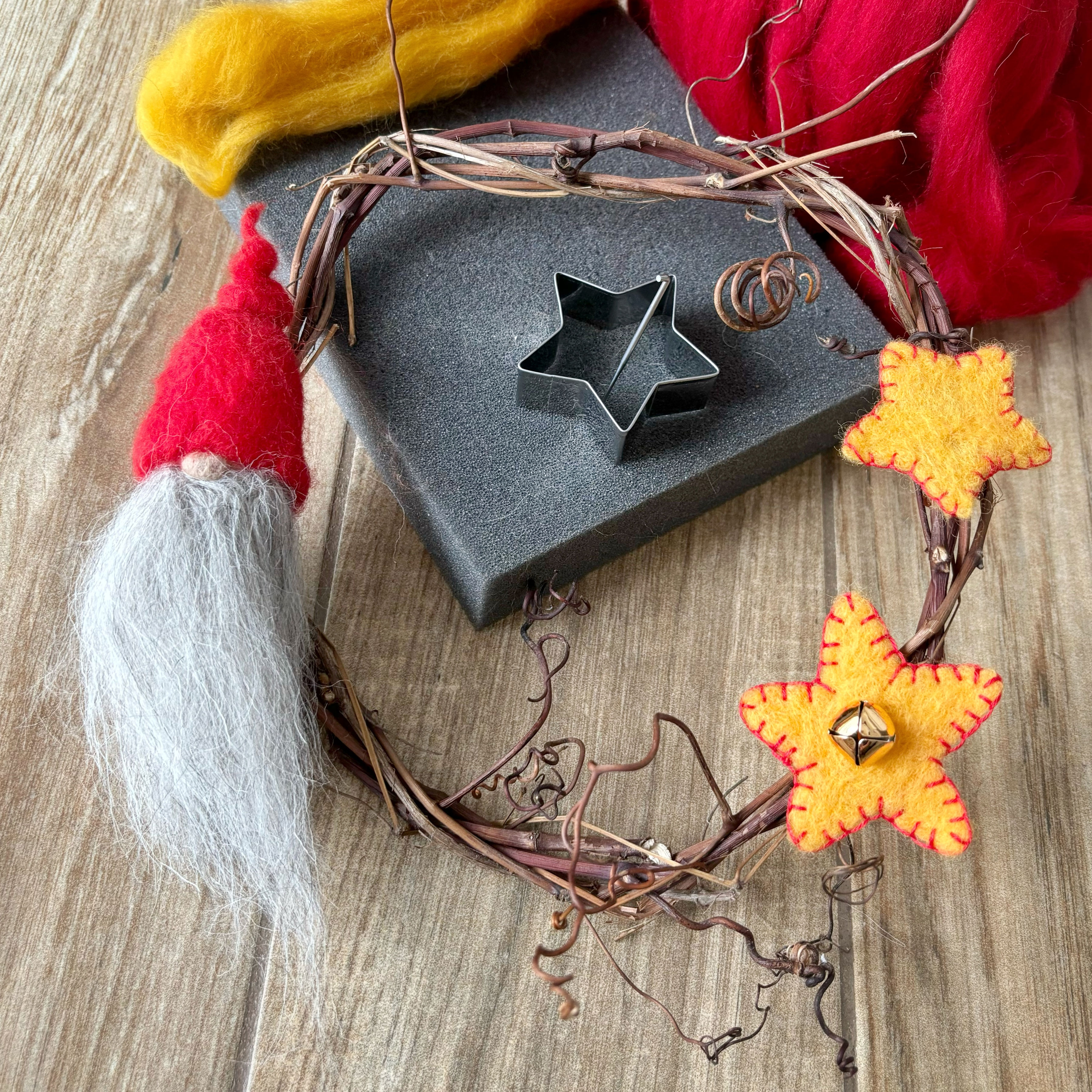
I don’t like that I cut out a bit of the tips of the curly bits of grapevine, and I would have liked the gnome closer to the ⅓ line, and that the top of the felting needle doesn’t reach over the cookie cutter. But, if I don’t stop playing with this and get it to Ruth it will never get published!
Digital cameras love averages
A camera’s sensor pulls everything toward average, so it makes a bright scene more dull and a dark scene more light. The more dark the camera senses, the more light it tries to bring in, and vice versa. But on a sunny winter day, we don’t want it to turn all our lovely white snow to grey, and we don’t want it turning the closeup of our lush black felted hat to a murky grey either. Be aware of this and use the Brightness or Exposure setting in your editing app to make your whites bright (but not too bright!) and your darks proper dark.
There are three basic edits that will significantly improve most photos. In Snapseed, all three of them are under “Tools” (at the bottom) then “Tune Image” at the top left.
Swipe down to find Brightness (I often lift the brightness a bit since I am usually inside where the light is dimmer), Contrast (a touch more contrast is often pleasant), and Ambiance. I love the Ambiance slider. I’m not entirely sure what the special sauce is, but it’s mostly mid-tone contrast, and it makes colours pop. Just a little swipe to the right is often enough to give you a lovely bit of extra magic.

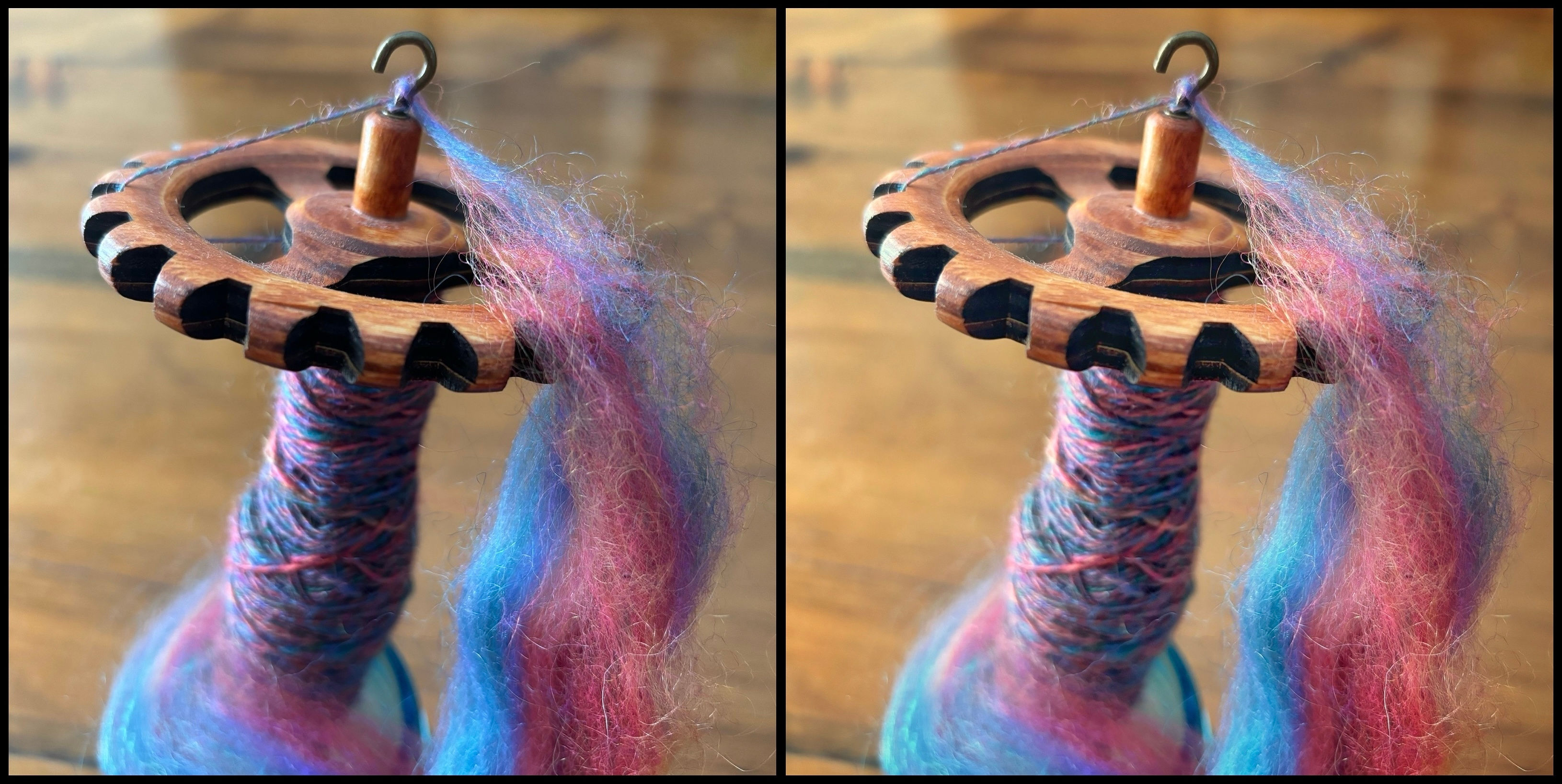
Here’s one of the photos from the series above straight out of the camera (left) and edited (right). I tweaked Shadows (less) , Ambiance (more), Contrast (more) and white balance (warmer). We’ll talk more about white balance in a later post.
So that’s my introduction to making the most of smartphone photography. First, think about the story you want to tell. Next, compose your image thoughtfully, and pay equal attention to what you include and what you exclude. And finally, give it a little polish with a photo editing app. But not too much!
Next time we’ll talk about the number one most important thing that can make or break your photos.
25 thoughts on “Tips for Taking Photos of Your Fibre Artwork”
There’s a lot of useful advice on composition here, for which thanks. Being one of the relatively few people without a smart phone, your mention of the various apps passed over my head though. I have a digital camera (yes an actual camera!) and I use an ancient version of Photoshop Elements (Four) for editing on my pc, where the tools are Lighten Shadows, Darken Highlights and Mid Tone Contrast for Lighting; Saturation, Hue, Temperature and Tint for Colour and finally Sharpen. I’m not sure where your Ambience fits in here?
I’m looking forward to your next topics, and hope that I can navigate around the smartphone bits! 😉
Thanks
Ann
Hi Ann, I think I’ve used that particular version of Photoshop Elements! If you want a good all-purpose recipe for tweaking photos in general, I’d probably do this: Lighten shadows (but not too much, around 10 to 20% change) and a bit more on Mid Tone Contrast. Then just a tiny nudge to increase Saturation. I will keep desktop edits in mind for the next posts and incorporate some suggestions.
That’s helpful, thanks Dani.
Ann
Thank you for taking Ruth’s suggestion on writing this article. Such a wealth of inform that was so needed to make my creations pop!
Thanks for taking the time to say so! 🙂
Thank you for this post! I do not edit, and it is clear that I should be doing do. Great information. Looking forward to two and three!
Thanks Deb. Modern cameras are SO smart, but with all their algorithms and math, sometimes they need a human eye for a little bit of extra guidance. The best editing is usually around compensating for the camera’s love of the average – ensure your whites are white and your blacks are black, and straightening any tilted horizons (oops, forgot that one in the post, I’ll have to add it to one of the future ones!)
Thanks for writing the post Dani. I usually edit in Photoshop Elements but I may see about one of your recommended apps too. I’m looking forward to reading your future articles.
The nice thing about desktop editing instead of mobile editing is that you have a much larger canvas. Mobile editing is easy and convenient, but for photos that really matter to me, I always bring them back to a nice big monitor so I can properly inspect them. Thanks again for the opportunity!
Thank you very much for taking the time to write this informative post Dani – looking forward to reading more from you. 🙂
It’s been such a delightful surprise to find a blog community that still interacts, so the pleasure is truly all mine. Thank you!
Fantastic, Dani! Thanks for all the suggestions. May I add one of my own? Always remember to clean your lenses – it’s amazing how many times I’ve forgotten to do that with mine 😅
Ha, that is an excellent tip. If I get invited back, I can write a whole post on “don’t make these silly mistakes that I’ve made or continue to make on an embarrassingly regular basis”!
Excellent information. My photos on Instagram will improve when I take the time to ‘set the stage’.
Ah, Instagram editing is a whole other ball of fuzz. Maybe one day that’s a post of its own?
Thank you so much Dani. I shall study you guides often. So wonderful to have a person to make a post about the intricacies of photography.
I’m so glad you found it useful!
All I can say is welcome Dani D! I am so happy to meet you, and can’t wait for the next installments. In this first post you helped me so much, filling gaps in the pieces I picked up from my brother. He majored in photography at an art college in Detroit, Michigan. He is extremely talented, but never had patience, to give much help. I am a good learner; I watched what he did, and asked lots of questions…until he had enough. I’ve plugged along from there, and took every iPhone/iPad workshop Apple offered. I do alright, but struggle with the tweaking. Your explanation of brightness, contrast and ambience, how the camera uses averages, and a new “free” app … I am absolutely smitten with you. ❤️ Can’t wait to know you better. If you need hand dyed yarns, I’ve got you covered anytime…
Capi
Such a warm and lovely comment Capi, thank you! I love talking about photography AND fibre arts, so if you ever have any questions or particular problems you’re encountering with photography, don’t be shy about asking me for help.
Such a useful post! I am glad that I have read it, as I tend to make a dash photographing felt, and I get daunted by the editing part of the equation! I see that putting a little bit more effort and time in it will be hugely helpful! Now I can see how to start. Thanks.
We follow each other on instagram – if you have questions don’t hesitate to reach out!
Great post I will have to look at those programs. I just got some backgrounds for taking pictures. I can usually play with contrast and brightness fairly well but no idea about tints and mid-range and the many many other options available on Photopad Photo Editor, the one I use now.
Any time you want to trade expertise, felting for photo editing, just reach out Ann! 🙂
I may take you up on that.
Thanks so much for this humorous and informative post Dani. I have Snapseed on my android but never thought of playing around with the Tune Image function. I will investigate it further, definitely. I purchased a light box a while ago and while it fulfils a purpose, it’s not great for those spontaneous shots and it takes time to set up.
I will go forward giving more thought to composition and reform myself from the ‘point and click gal’ I have become.
Thanks again,
Helene x