Browsed by
Tag: Photoshop

Exploring Fauvism

Exploring Fauvism

Apologies for the late post, I planned to post about a new piece of felt but only 1 of the photos wasn’t blurry, so I thought I’d post about Ruth’s Fauvism Challenge. To try and understand Fauvism, I thought I would try to alter some photos in the style of it. Lyn posted on the forum that she’d written these words to help her with the challenge: “Fauvist paintings have a simplified drawing and an exaggerated use of colour”
It summed up what I had been trying to achieve with the edited photos. The first one I tried had some of the bright colours, and the water ripples gave the ‘texurey’ look of the Fauvist style brush strokes, but I felt like I need to try a different photo. This is the one I started with:

OLYMPUS DIGITAL CAMERAAnd after some tweaks on Photoshop:

OLYMPUS DIGITAL CAMERAI tried it again with a different photo. This is the original:

OLYMPUS DIGITAL CAMERAI increased the brightness and saturation:

OLYMPUS DIGITAL CAMERAThen I simplified the colours and shapes:

OLYMPUS DIGITAL CAMERAThis muted the colours a lot so I increased the saturation again:

OLYMPUS DIGITAL CAMERAI then added a few tiny lines around the boat and some colour to the water:

OLYMPUS DIGITAL CAMERAI then added outlines:

OLYMPUS DIGITAL CAMERAI feel like this last one is the starting point, rather than the finished picture. It has the simple shapes and the colour is exagerated, but more in saturation than anything. And though at first the Fauvism style seems very bright, when you really look at the paintings, they aren’t so much bright as bold. I think I will play around with some other photos, try to get ones which start simpler, but have more in the way of colour variation. One thing I did learn today, was how to pronounce ‘Fauvism’ 🙂

2nd Quarter Colour Challenge

2nd Quarter Colour Challenge

I thought I would play around with a digital painting of mine, for Ann’s 2nd Quarter Colour Challenge.

A Digital Painting SMALLI started off using Photoshop. The first filter I used was Median, I wanted to get a simplified version of the painting:

B medianI then used some other filters to get more defined areas of colour. This one was Mosaic, I set the cell size to 50:

c mosaic 50And this was Mosaic with the cell size set to 200:

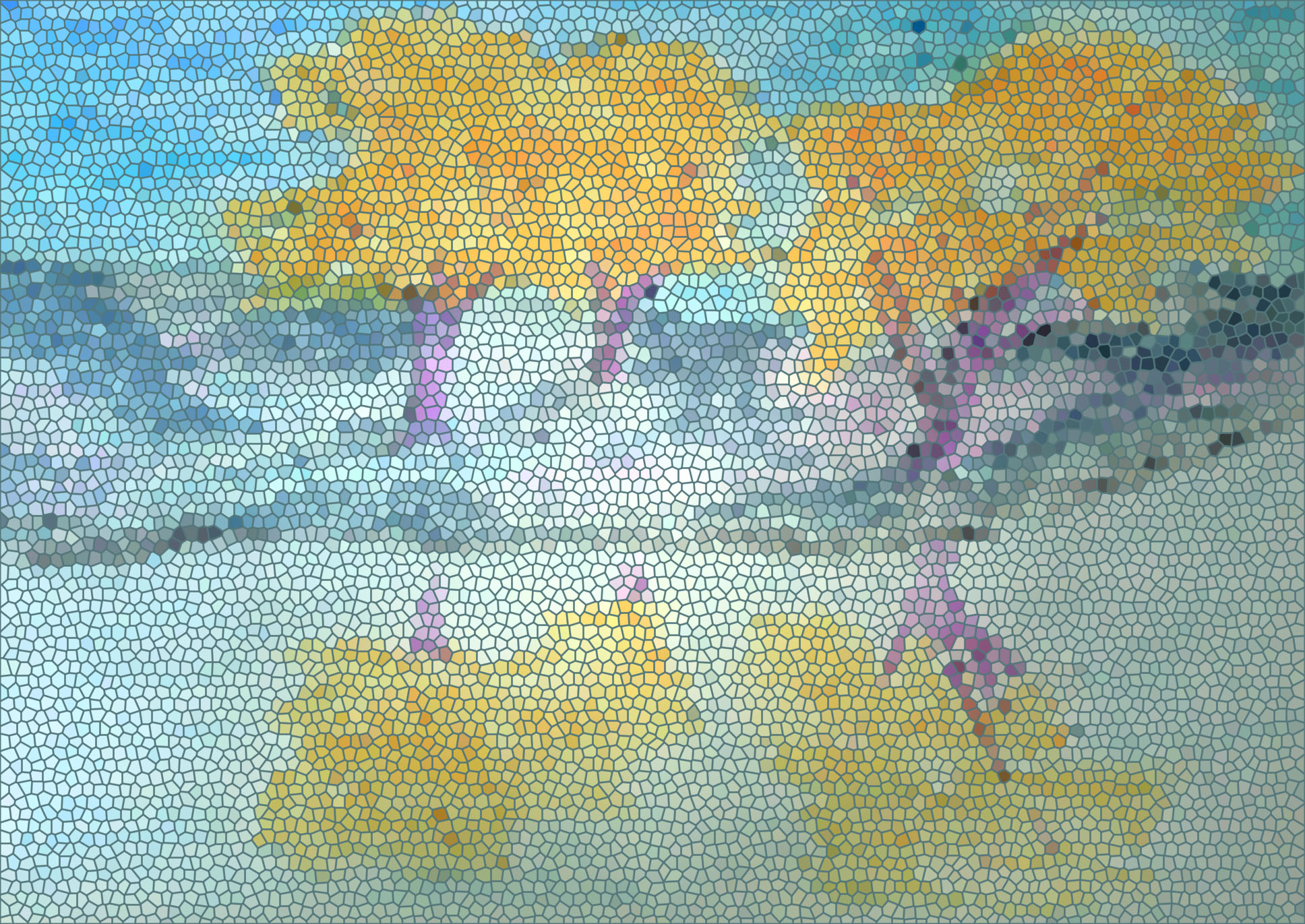
d mosaic 200I used the Crystalise filter set to 200 for the cell size on this one, the colours are similar to the 200 Mosaic one, but because it follows the shape of the original more and isn’t square, there is  more colour variation:

e 200 crystaliseThe last version I did using Photoshop was using the Gaussian Blur filter. I selected 5cm x 5cm squares, then blurred that section to one colour:

e averageI uploaded the image to a site Ann recommended, Color Palette FX, and this was the result:

F colour palette fxI also used one which had been tried on the forum, Moda Palette Builder. This was a bit different, it didn’t reduce the picture to a few equalised colours, but you  choose which areas of the picture you want to pick out colours from to create a palette:

G modaI always enjoy messing around with colour and on Photoshop, so this was fun.

Batch Editing Photos

Batch Editing Photos

One thing that a lot of us who share photos on the internet have in common, is that we can spend hours editing them. Almost every time I do a blog post, I have around 5 or 6 photos that I need to crop and shrink so they aren’t too big when they’re clicked on, and so they don’t take up all the storage memory.
A lot of the photo editing programs have ‘Batch Editing’, this allows you to open multiple photos and edit them all in exactly the same way very simply with just a few clicks, so you’re not having to sit there and manually alter every single one. It really saves a lot of time and effort. It is particularly useful if you have to shrink a lot of photos or have a batch that all need brightening up, or maybe you want to add a signature or apply an effect to create an abstract design….I found this really useful when working on photos for Ann’s abstract challenge a few months ago.


I’ve written a tutorial showing how to use the Batch Editing feature on Photoshop. I’ve only ever used Photoshop, so I can’t be sure that other programs do it the same way, but this should give you a good idea of what to look for on other programs. I’ve used shrinking as the example on the tutorial, because this is one I use most often. I know a lot of people like to add signatures or watermarks to their photos, batch editing is really good for this as long as you want the text to be exactly the same on each photo.

It’s always a good idea to have a practice first before recording an Action for batch editing. I usually keep notes for each effect applied, type size, or what the brightness and contrast levels were etc, then it’s easier to recreate. One thing that is important to point out, for certain effects, alterations or filters, for the results to be exactly the same, the resolution of the photos must be the same as each other and as the photo you originally worked out the Action on. If not, you could end up with type of different sizes for example.

I hope you find it useful and if you have any ideas for other tutorials, please let us know 🙂

PDF Tutorial: Batch Editing in Photoshop

Abstraction – Taking It Further

Abstraction – Taking It Further

I was really inspired by Zed’s use of Photoshop to “abstract” her photos. So I decided to take my sketches from my last post about Ann’s challenge and use Photoshop to see what the results would be. I mainly used filters and I didn’t really keep track of what I did. But if you have Photoshop, you can just play around with the filters until you come up with something you like. If you would like to compare the original pen and ink sketches, go to this post here.

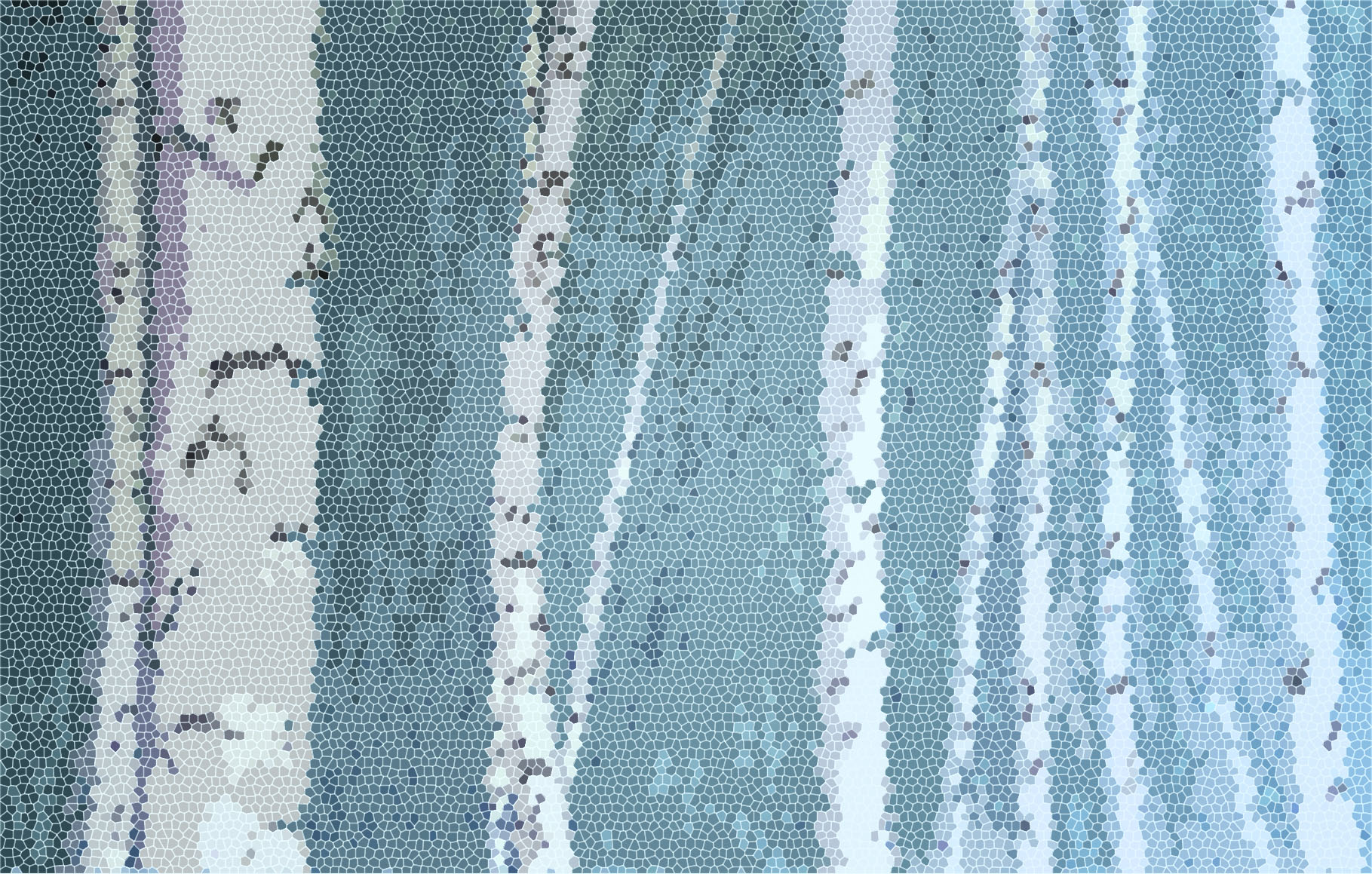
You can click on the photos to see better. This one is the mosaic filter. I really like how the background moves from light to dark. I didn’t really see that in the drawing itself.

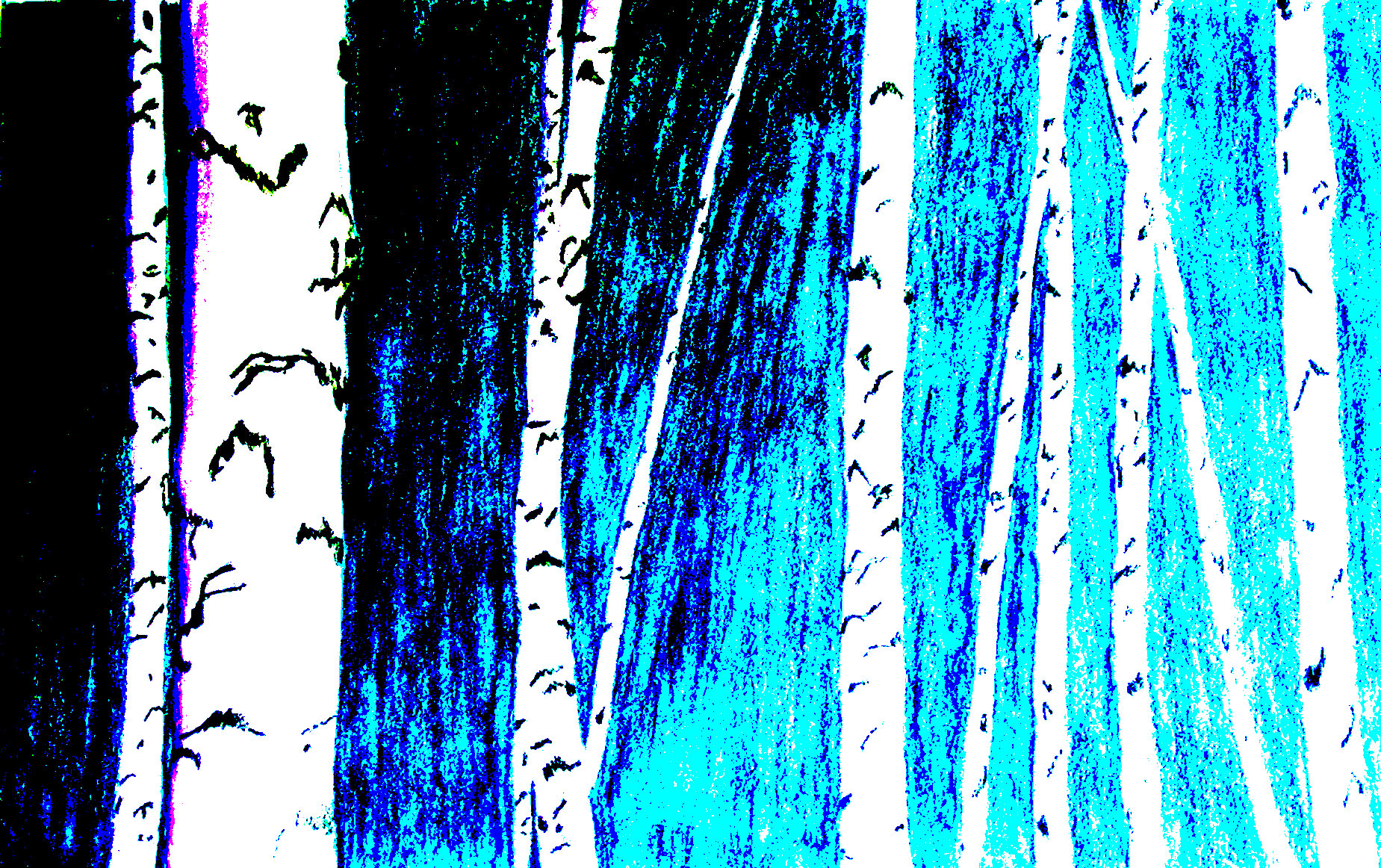
I can’t remember what I did to this one but I really like the dramatic contrast between the background and the birch trees. This to me is a much striking composition.

This gives an almost impressionistic feel to the dogwood branches. It looks kind of cool but I think the element that catches the eye in this composition is the lines of the red dogwood branches against the background and this doesn’t really improve that.

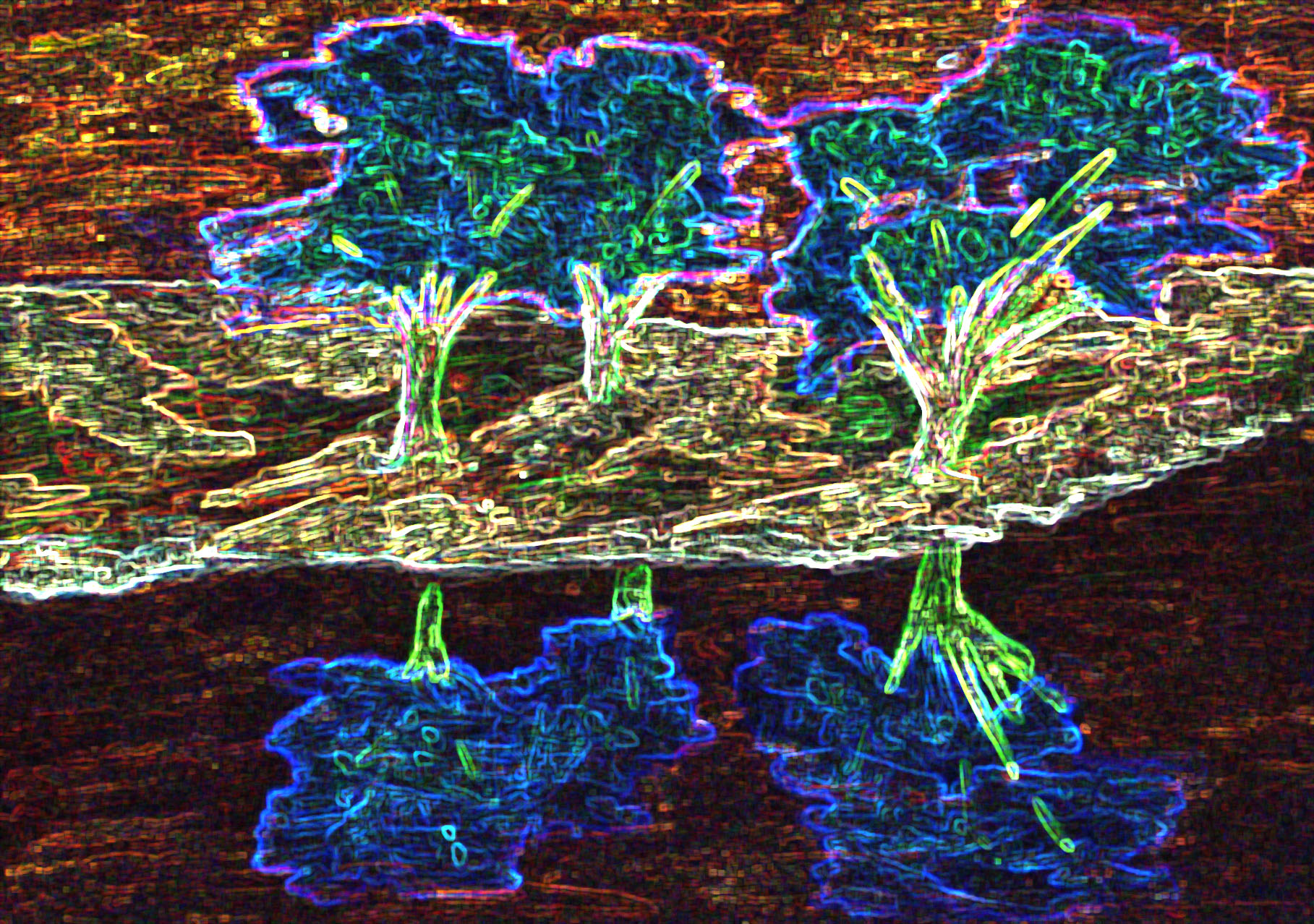
I thought this was an interesting effect and it might be the embossing filter. I like the way the blue and the red play off each other in this one.

This is one of the outlining filters, I think. I like the contrast of the darker hill in the background. I also like the outline of black on the dogwood branches as it seems to give them more implied shape.

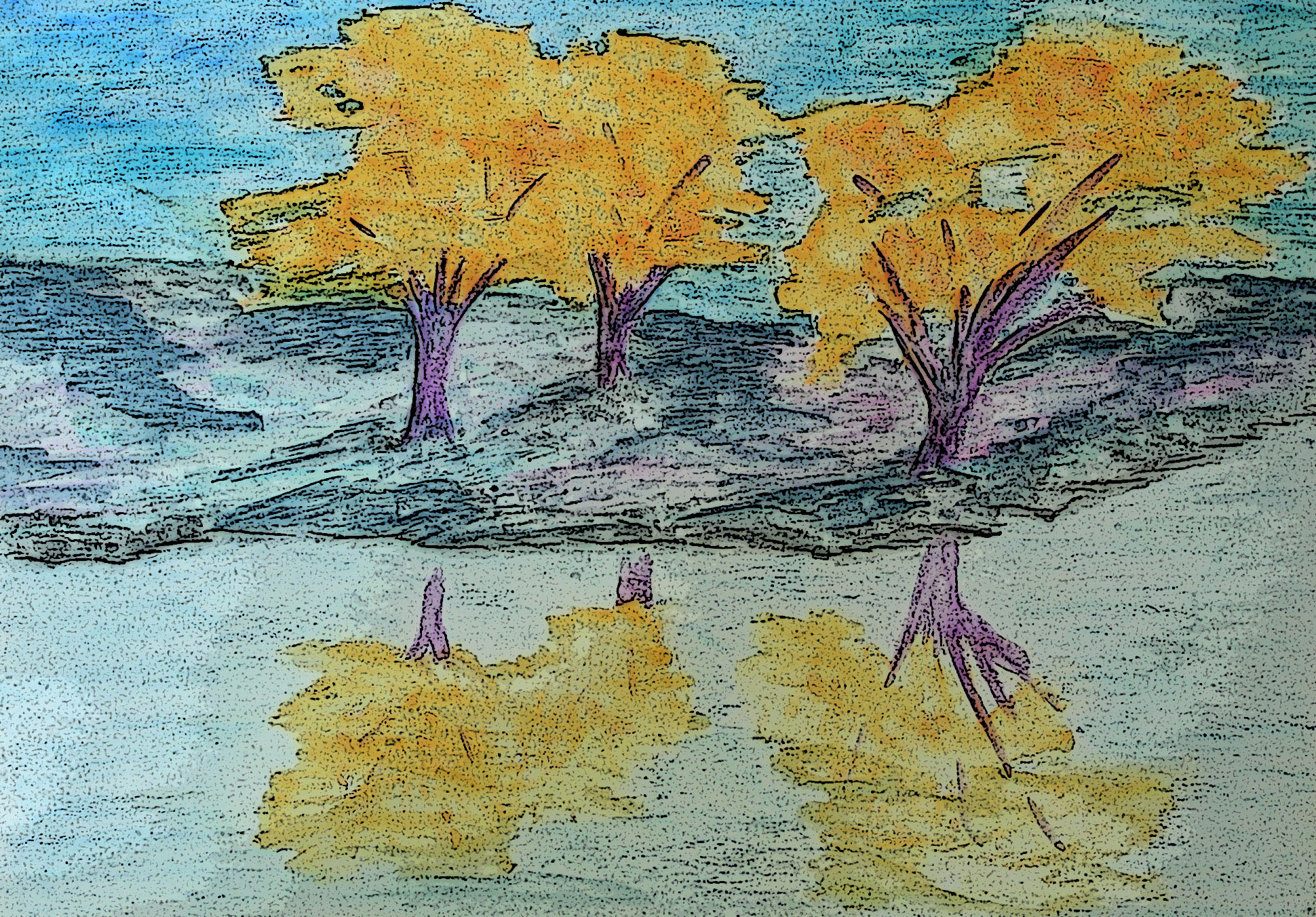
This one isn’t that changed but does give more outlines than the original and makes it a bit darker. I think this helps to ground the trees.

Now this is abstract. I’m sure I never would have come up with this idea on my own when I was drawing the willows. But I kind of like it. What do you think?

This is another one where I used a mosaic filter. I do like how this filter works. You can see it better if you click on the photo to enlarge it. I don’t think that you could repeat this effect very easily in felt though.

I really enjoyed playing with my sketches in Photoshop. There are a million options and it can give you some ideas that you might not come up with on your own. Which of the sketches do you like now? Which one do you think I should use to make a piece of felt? If you played with abstracting a photo or a sketch in Photoshop, I’d love to see it.